IPTV for families: kids profiles, parental lock and screen time
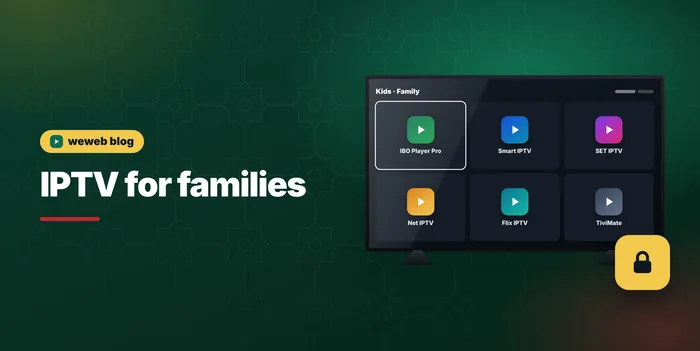
IPTV for families: choose the right plan and number of devices, set a parental lock PIN, separate kids profiles and use your TV's own controls. A practical guide.
Television at home is a family affair: cartoons in the morning, a Moroccan series in the evening, football at the weekend. IPTV for families works well, as long as you set it up with children in mind. This guide covers the plan and the number of devices you need, the parental lock in the player app, separate profiles for children and the controls built into your TV. If IPTV itself is new to you, start with what is IPTV, explained for parents.
None of these settings take long. Ten minutes on the first evening saves many discussions later.
What families need from home TV
Families usually want three things: content in the languages spoken at home, a way to keep unsuitable content out of children's reach, and enough flexibility so that one person's programme does not stop everyone else's.
IPTV brings Moroccan, Arabic and international channels together with films and series on demand. That variety is a strength, but it also means the full list includes programmes that are not for children. The settings below help you keep both.
One screen or two: matching the plan to your household
Every plan plays one stream at a time, so the first decision is how many devices you want to install it on. Standard and Premium are installed on 1 device, which suits a household that watches together in the living room. VIP can be installed on 1 or 2 devices, one at a time, for example the TV and a tablet that the children use when the TV is off. If a child and the parents need to watch at the same moment, plan a second subscription.
- Standard: HD and Full HD, 21,000 channels, 123,000 films and 29,000 series, 1 device, the lowest price.
- Premium: 4K where the channel broadcasts in 4K, full sports and premium packs, 21,000 channels, 123,000 films and 29,000 series, 1 device.
- VIP: everything in Premium, with 43,000 channels and 200,000 films and series, 1 or 2 devices, one at a time and priority support.
Prices are Standard 300 DH, Premium 450 DH and VIP 600 DH for 12 months, one payment, no automatic renewal. Compare them on the IPTV subscription plans and screens page.
Parental lock in the player app
Most player apps include a parental control setting, usually protected by a PIN code. Once it is on, the categories you choose are hidden or require the PIN to open. This is the most effective control, because it works on the channel list itself.
- Open the app settings and look for "Parental control" or "Lock".
- Choose a PIN that children do not know, and that is not 0000 or 1234.
- Select the categories to lock: adult content, late-night films, or any group you prefer to keep for adults.
- Check that the locked categories now ask for the PIN.
- Repeat on every device the family uses, because each app keeps its own settings.
Menu names vary from one app to another. If you cannot find the option, our IPTV setup guide links to the page of each app.
Kids profiles and separate playlists
Some player apps let you add more than one user or more than one playlist. You can use this to create a children's space: a profile with only their favourite channels, or a favourites list limited to cartoons and educational programmes.
Where the app does not offer profiles, favourites are a simple alternative. Build a short list of children's channels and set the app to open on favourites. Younger children then see only the channels you chose, without browsing the full list.
When children watch on phones and tablets
Tablets are often the children's screen, especially on journeys or when the TV is taken. Install the same player app on the tablet, add your access and set the parental lock there too, because each app keeps its own settings on each device.
Remember the limit: every plan plays one stream at a time, so a tablet playing at the same time as the TV cuts one of them off. The VIP plan lets you install the access on the tablet and the TV, used one after the other; if both play at the same moment every day in your home, a second subscription avoids the conflict. Headphones help too, so the tablet does not compete with the TV in the same room.
Keep the PIN private, change it if a child guesses it, and avoid writing it on a note next to the TV. A PIN that everyone knows protects nobody.
Locks at the device level
Your TV, streaming stick or phone has its own controls, which add a second layer of protection.
- Samsung and LG TVs: the settings include a PIN and app locks, so you can lock the player app itself.
- Fire TV Stick: parental controls can require a PIN to open apps and make purchases.
- Android phones and tablets: Google Family Link lets you manage a child's apps and screen time.
- iPhone and iPad: Screen Time sets limits and content restrictions.
Combining the app lock with a device lock means a child who learns one PIN still cannot reach everything.
Choosing content for children
During the free test, spend a few minutes in the children's categories with your child. Check the languages available, Arabic, French or English, and whether the programmes suit their age. The films and series section often has animated films as well, which are handy for weekends and long journeys.
For Moroccan families abroad, this is also a chance to keep children in touch with darija, Amazigh and Arabic through cartoons and family programmes. The channel line-up is presented on our Moroccan TV channels page.
Screen-time habits that work
- Agree on fixed times for cartoons rather than open-ended viewing.
- Keep the TV in a shared room for younger children.
- Use the sleep timer on the TV for evening programmes.
- Watch together when you can: a series in darija is a good way to share the language.
A family setup checklist
- Choose the plan by the catalogue and the number of devices you need, one stream at a time.
- Install the player app on each device and add your access.
- Turn on the parental lock in each app with a private PIN.
- Create a favourites list or profile for the children.
- Add a device-level lock on the TV or tablet.
Want to try all this first? The IPTV free trial gives you a 24-hour test line on WhatsApp, with no payment. When you order, your access is sent within 1 hour, 24 h at most. Learn more about the service on the IPTV Morocco home page.
Answers
Frequently asked questions
Open the app settings, find the parental control or lock option, choose a private PIN and select the categories to lock. Repeat it on every device where your weweb access is installed, because each app keeps its own settings.
Every plan plays one stream at a time. The VIP plan can be installed on two devices, for example a tablet for cartoons and the TV for the news, used at different moments, and it has the biggest catalogue. Standard and Premium are installed on one device, which suits families who mostly watch together; if children and parents must watch at the same moment, take two subscriptions.
Watch with weweb
300 / 450 / 600 DH for 12 months, paid once. Free 24-hour test on WhatsApp before you buy.
Related articles
How to spot a fake IPTV seller in Morocco
Lifetime deals, 30 DH offers, no test, no written terms: the warning signs of a fake IPTV seller in Morocco and a ten-minute check before you pay.
Read the articleChoosing an IPTV app for Samsung and LG TVs
How to choose an IPTV app for Samsung and LG TVs: Tizen and webOS, the apps in the stores, activation fees paid to the app, and when to use a stick.
Read the article